Approve a pending registration
When an agent registers itself (MCPB or CLI), it’s created in status: pending — it can’t call anything yet. You decide which platforms and scopes it gets in the Grant platform access modal.
Open the pending tab
Dashboard → Agents → Pending Approval tab. The tab title shows a red badge with the count.
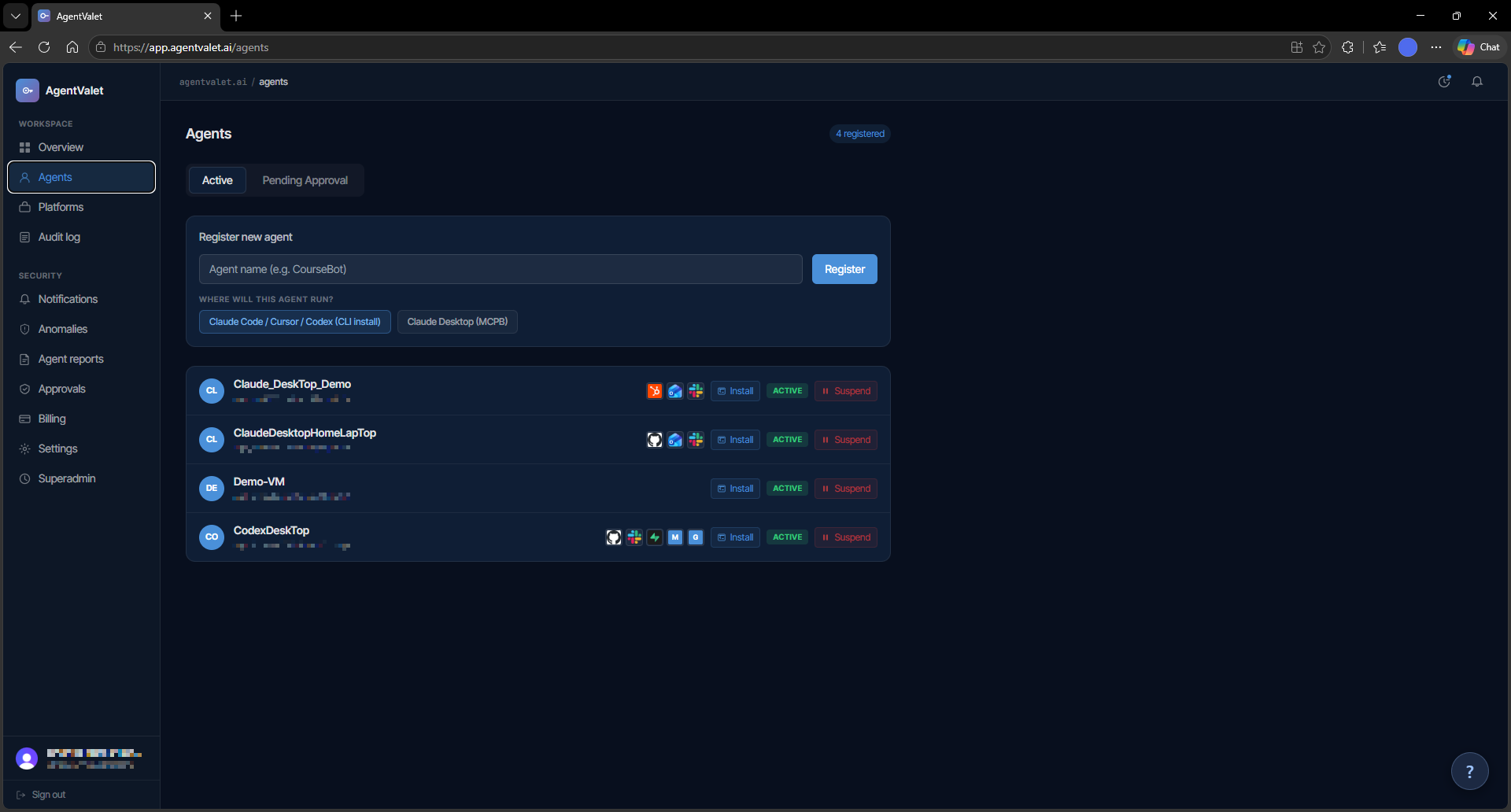
Each pending registration is a card with:
- PENDING badge (blue)
- Agent name and creation time
- Countdown timer — “
{m}m{s}s” or “Expires in{s}s”. Amber under 60 seconds, red after expiry. - REQUESTED SCOPES section — every
(platform, scopes)pair the agent asked for, as pills
Two buttons at the bottom: Approve (green) and Reject (red).
Approve
Clicking Approve opens Grant platform access. Subtitle reads “Select which platforms {agent_name} can access. Requested scopes are pre-selected.”
The form
For each platform you’ve connected on the Platforms page, there’s a checkbox. Tick the platforms you want this agent to access — only ticked platforms appear in the granted list.
For each ticked platform, you see its scopes as a list of checkboxes:
- Green-highlighted scopes are pre-selected based on the agent’s request
- Blue dot ● marks scopes the agent specifically asked for
- Anything unchecked is denied
Below the scope list, a Require human approval per request toggle. Flip it on for any scope class where you want each call queued for your decision.
Connecting platforms first
If you haven’t connected any platforms yet, the modal shows:
“No platforms connected yet. Connect platforms first →”
That link goes to /platforms. Connect what you need, come back, and the dropdown will be populated.
Submit
The primary button reads Approve with {N} platforms. The agent’s status flips from pending to active, the granted permissions are written, and the approval shows up in the audit log.
Reject
If the request looks wrong — unknown agent, weird scopes, expired timer — click Reject. The agent stays in pending status and the originating MCPB/CLI gets an explicit denial on its next agent_status poll.
What the agent sees after approval
The agent (or the human running the agent) calls agent_status with the registration token. The response now includes the agent ID, the granted permissions, and (for MCPB) the credential bundle they need to paste back into Claude Desktop.
Common gotchas
- You don’t see a pending agent that someone says they registered — they may have used a different owner ID. Confirm the owner ID they passed to
agent_registermatches yours (Settings → Owner ID). - Pending card expired — registration tokens live 30 minutes by default. The user re-runs the registration and a fresh card appears.
- Granting more scopes than the agent asked for — the modal lets you. The agent will just discover them via
list_platformson its next call. That’s fine.
Next
- Configure an agent’s permissions — after the fact
- Suspend or reactivate an agent